提交工单
咨询集成、功能及报价等问题
This document describes how to make your first voice/video call with the ZEGO CallUIKit. You can simply make a UI-embedded call or build a call app after integrating the CallUIKit.
To know what exactly the UI looks like, you can check our Sample app. If the UI provided in the sample app can't meet your requirements, we recommend you try our Call SDK, and implement the UI login on your own as needed.
ZEGO Call uses the Firebase Cloud Functions as the business server by default, we recommend you activate and deploy it before integrating the Call SDK.
To use your own business server instead of using the Firebase, refer to the Use ZEGO Call with your business server.
Create a Firebase project in the Firebase console. For details, see Firebase Documentation.
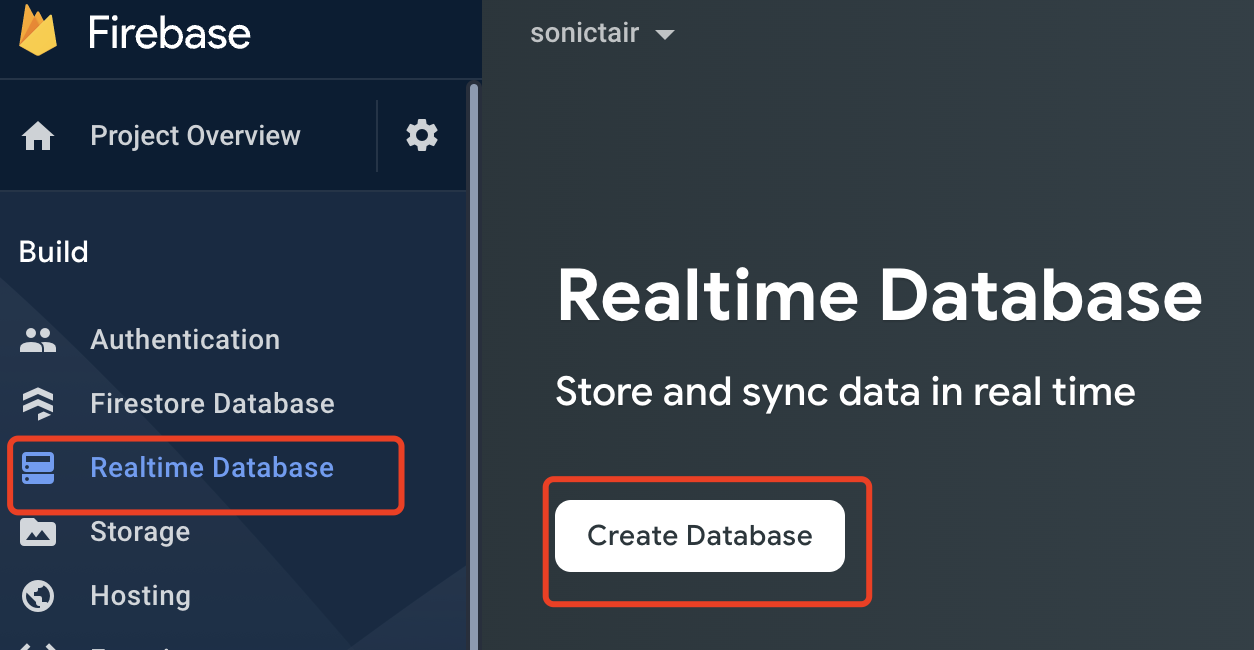
Create a new Realtime Database in Firebase.
)
Edit the rules of the Realtime Database by adding the following:
{
  "rules": {
        ".read": "auth.uid != null",
        ".write": "auth.uid != null",
  }
}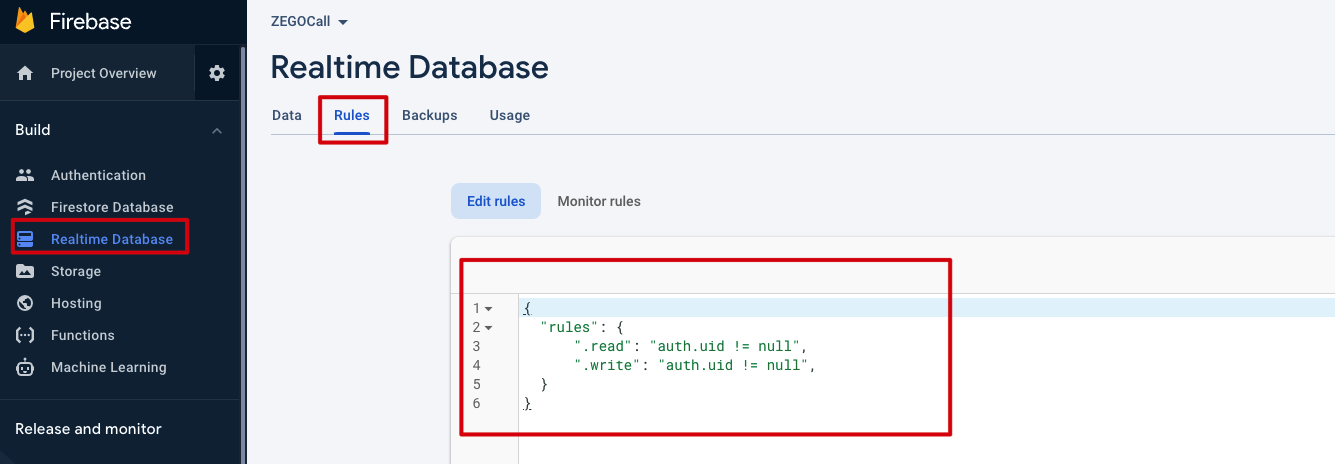)
Install the CLI via npm.
npm install -g firebase-toolsRun the firebase login to log in via the browser and authenticate the firebase tool.
Go to your Firebase project directory.
Run firebase init functions. The tool gives you an option to install dependencies with npm. It is safe to decline if you want to manage dependencies in another way, though if you do decline you'll need to run npm install before emulating or deploying your functions.
Download the Cloud function sample code.
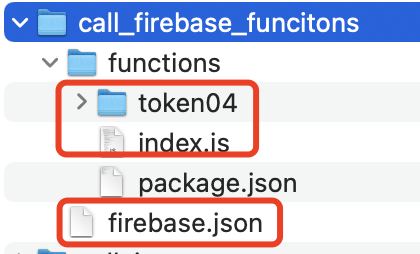
Copy the firebase.json and functions\index.js files in the sample code to your cloud function project, overwrite files with the same name.
Copy the functions\token04 folder from the cloud function project directory, and put it in the same folder together with the index.js.
)
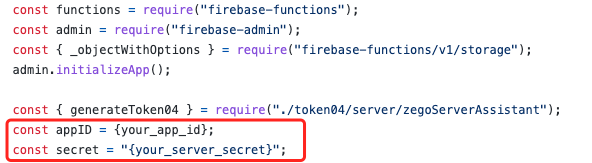
Modify the index.js file, fill in the AppID and ServerSecret you get from ZEGOCLOUD Admin Console correctly.
)
In Firebase CLI, run the firebase deploy --only functions command to deploy the cloud functions.
To integrate the ZEGOCallUIKit automatically with CocoaPods, do the following:
Download the Sample codes, and copy the ZEGOCallUIKit and ZEGOCall folders to your project directory (if you have no project, create a new one).
)
Open Terminal, navigate to your project directory, run the pod init command to create a Podfile, and then add the following to the file.
pod 'ZegoExpressEngine'

pod 'FirebaseAuth'
pod 'GoogleSignIn'
pod 'Firebase/Database'
pod 'Firebase/Analytics'
pod 'Firebase/Crashlytics'
pod 'Firebase/Messaging'
pod 'Firebase/Functions'
)
In Terminal, navigate to the directory where the Podfile locates, and run the pod install command.
pod installRestart the Xcode, and open the newly generated .workspace file.
Permissions can be set as needed.
)
Privacy-Camera Usage Description
Privacy-Microphone Usage Description
)
)
)
)
)
)
)
To initialize the ZEGOCallUIKit, get the CallManager instance, pass the AppID of your project.
// Initialize the ZEGOCallUIKit. We recommend you call this method when the application starts.
// YOUR_APP_ID is the AppID you get from ZEGOCLOUD Admin Console.
func application(_ application: UIApplication, didFinishLaunchingWithOptions launchOptions: [UIApplication.LaunchOptionsKey: Any]?) -> Bool {
    CallManager.shared.initWithAppID(YOUR_APP_ID) { result in
        // Callback for the result of init.
    };
    return true
}
To receive callbacks, set the corresponding delegate to self.
CallManager.shared.delegate = selfZEGO Call does not provide user management capabilities yet. You will need to have users log in to Firebase and then call the setLocalUser method to set user information to CallUIKit based on the login result.
Firebase provides multiple login authentication modes. The following uses Google login as an example. For more modes, refer to the Firebase official.
var userID: String?
var userName: String?

GIDSignIn.sharedInstance.signIn(with: config, presenting: self) { user, error in
       guard let token = user?.authentication.idToken,
             error == nil
          else {
             return
          }

            let credential = GoogleAuthProvider.credential(withIDToken: token, accessToken: "")
        Auth.auth().signIn(with: credential) { result, error in
            guard let user = result?.user else {
                return
            }
            self.userID = user.uid
            self.userName = user.displayName
        }
}

// Set local user info.
CallManager.shared.setLocalUser(userID, userName: userName)ZEGO Call implements the voice and video call feature using the RTC SDK. The caller and called user join the same room and the stream publishing and stream playing start upon the call gets connected. Therefore, to make an outbound call, you will need to provide a token for the RTC SDK for validation. For details, see Use Tokens for authentication.
Before making or accepting an outbound call, you will need to get a Token from the Firebase Cloud Functions.
private func getTokenFromServer(_ userID: String,
                                    _ effectiveTimeInSeconds: Int,
                                    callback: @escaping TokenCallback) {

        let functions = Functions.functions()
        let data: [String: Any] = [
            "id": userID, /// The userID of the current user.
            "effective_time": effectiveTimeInSeconds /// The valid period of the Token.
        ]
        functions.httpsCallable("getToken").call(data) { result, error in
            if let error = error as NSError? {
                print("[* Firebase] Get token failed: \(error)")
                callback(.failure())
                return
            }
            guard let dict = result?.data as? [String: Any],
                  let token = dict["token"] as? String
            else {
                callback(.failure())
                return
            }
            callback(.success(token))
        }
    }
To set a Token to the token property of the CallManager, implement the agent-owned callback getRTCToken of the TokenProvider.
// Get and set the Token.
// userID refres to the ID of the logged in user.
func getRTCToken(_ callback: @escaping TokenCallback) {
        guard let userID = CallManager.shared.localUserInfo?.userID else {
            callback(nil)
            return
        }
        let token: String? = result.success
        callback(nil)

        getTokenFromServer(userID, effectiveTimeInSeconds) { result in
            switch result {
            case .success(let token):
            guard let callback = callback else { return }
            callback(token)
            case .failure(let error):
            guard let callback = callback else { return }
            callback(nil)
            }
        }

}To make an outbound voice call, call the callUser method and set the type parameter to CallType.voice.
// toUserID refers to the ID of the user you want call.
// CallType.voice indicates that you make a voice call.
CallManager.shared.callUser(userInfo, callType: .voice) { result in
    // Callback for the result of make a voice call.
}
To make an outbound video call, call the callUser method and set the type parameter to CallType.video.
// userInfo refers to the user info(ID and name) of the user you want call.
// CallType.video indicates that you make a video call.
CallManager.shared.callUser(userInfo, callType: .video) { result in
    // Callback for the result of make a video call.
}
After making a call, the CallUIKit shows the UI of the current state automatically for both the callee and caller (integrated the CallUIKit is required), and, you can operate on the UI for further operations.
The following displays when the caller calls the method to make a call (make a voice call for illustration)
)
The following black pop-up prompts when the callee receives an incoming call (make a voice call for illustration)
)
When you encounter problems when using your app, call the uploadLog method to upload logs for us to locate and help you faster.
CallManager.shared.uploadLog { result in
    // Callback for the result of upload SDK log.
}After finishing using the ZEGO Call, call the unInit method to deinitialize the SDK.
CallManager.shared.uninit()